Loan Application - Paper Form Entry
Verify Loan Application is IGO: Ensure that information is complete for amount, duration and a valid signature is provided. Please note that digital signature is not accepted and Docusign option is not available for initial Loan Application. A loan can not be initiated without these minimum details.
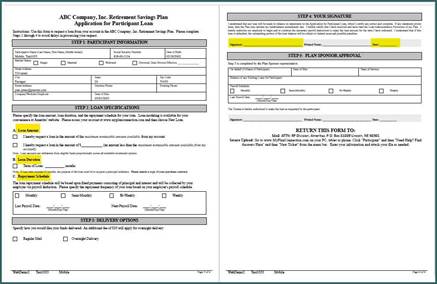
Enter Loan Request to MPC: It's imperative that the new loan is entered to MPC to initiate processing. (Note: this is opposite of how a hardship or other type of distribution begins by entering the request into PC first...but a loan will NOT move forward if entered to PC first)
Begin by logging into MPC, then choosing the appropriate Plan and Adopter (as seen at top of Loan Application). Next will be to click on "Employees" on the upper right and choose "Employee Account Access".
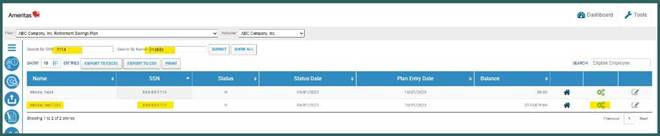
Enter the last 4 of social and last name shown on loan form, then click submit to return the appropriate participant account. Click the "gears" to enter the "Manage Account" screen.
Now that you're in the "Manage Account" screen, it's always helpful to review any recent notes shown on the bottom left. Then choose "Request a Loan". The next screen will contain withdrawal options. Here, you will choose "General Purpose Loan" and "Get Started" (Only choose "Residential Loan" when indicated on the loan form and accompanied by a purchase contract).
The following 6 screens will move you from beginning to end of the loan request pages. Please note that each screen shows you the "Overall Progress" in the upper left corner. The entry is complete only when shown as 100% with a "Confirmation Number".
The first page (0%) is informational only, click next to proceed. Enter the amount and duration/number of payments from the loan app on the 2nd entry sreen (20%)
Please note that the loan form shows payments as months but MPC entry is shown as overall number of payments which is based upon the payroll frequency. For example: The above loan was requested on the form to span 24 months, this is translated to roughly 50 payments for their bi-weekly pay frequency. There is the option to "Review the Amortization Schedule" if you want to double check the total payments to the total months as requested to ensure they match.
The 3rd entry screen (40%) is seen as informational since we can not change the address in this area, it correlates to the AOR on file for the participant. Click "Next" to continue. Please Note: If this does not match the address shown on the Loan Form, you will need to send the participant the canned message for Address Verification in Fresh Desk and add a DMC alert once available in PC to ensure it is correctly mailed. (DMC should show the mailing address requested on form and that verification has been requested in FD xxxxxx)
The 4th entry screen (60%) should have each box checked and then click "Next". All information shown here is part of the Loan Application and therefore has already been supplied to the participant.
The 5th entry screen (80%) is a final summary and should be reviewed against the Loan Form to ensure it is accurate, then click "Next". The 6th entry screen (100%) provides the confirmation number and let's you know the entry is now complete in MPC. The Confirmation Number (or a screenshot) should be obtained to post as a note on the FD ticket containing the loan application. The final steps for the FD ticket and PC record are next.
Fresh Desk (FD) Ticket Process: Now we'll return to the FD ticket that where we received the Loan Form so the application can be saved to file and the ticket noted.
To save the document, choose "Save as" and assign it to the appropriate year sub-folder for "Loans" found in the highlighted directory or by following the path here: R Drive>Capital Operations>Participant Forms"Loans"2026. The title of the document should follow the format of "PlanID-Ppt Last Name-Ppt Last 4 SS-Date rcv'd in FD-Document Title. (Please note that "Loan Documents" or "Loan Doc" should be avoided as a title since this could easily be misinterpreted as final signature forms for a loan to finalize processing, "Loan Request" or "Loan App" are examples of titles that will show the difference in document type being saved.)
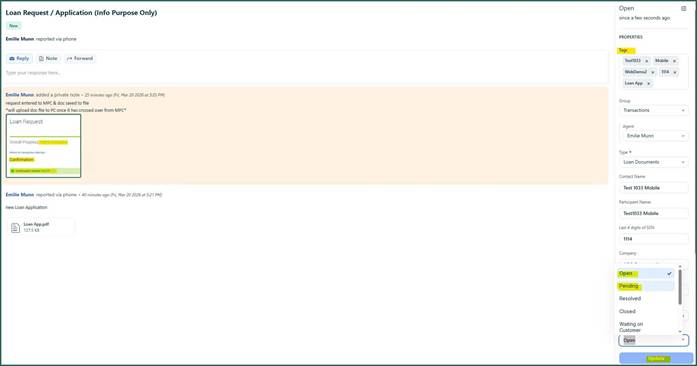
Once the document is saved to file, make a note in the FD ticket to show the request has been entered to MPC and the file is saved. Click "Add Note" to save it to the ticket. The confirmation number or a screenshot of the confirmation number should also be added as part of the note. (This is helpful since the file will need to be attached to the PC record once it has crossed over from MPC in the systems - additional information to follow)
Next, add the appropriate "Tags" to the ticket properties in the upper right (First & Last Name, Last 4 SS, PlanID, Document Type). Also in the properties, set the ticket status to either "Pending" or leave as "Open" and click "Update" at bottom of properties to save your changes/additions. These status options will keep the ticket visible in the active list so the previously saved file can be added to the Loan Distribution Record once the Loan has crossed over to PC (Plan Connection) as seen in the next steps. Crossover to PC will occur during the next system update (generally at noon EST and variable afternoon times thereafter POCVTJOFTTEBZT)
PC (Plan Connection) Process: Once it is confirmed that the Loan Request entered to MPC has crossed over and is available in PC, you'll upload the previously saved Loan Application document to the Loan Distribution record.
Begin by choosing "Loan Distribution" under "Tasks", then enter the last name to search for the appropriate record. Click on
"Detail" to open the record. (the "Web Confirm ID" will match the confirmation you received for the MPC entry)
The file you saved earlier will be uploaded by choosing the "Document" tab, and "Upload File". Enter the Description of the file (ie: Loan Request/Loan Application) and click "Choose File". Navigate to the same Loans sub-folder used earlier to save and choose the file by highlighting it, then click "open".
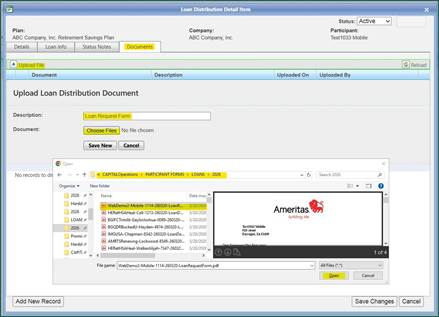
Now that your document file is correctly shown, click "Save New" to finish uploading it. This is confirmed as successful when shown like the 2nd example screen below.
If the Loan Form reflected a delivery option, this should be updated to the "Details" screen now, making sure to "Save
Changes" before leaving that tab. Please add a "DMC" alert for Overnight Delivery on the "Status Notes" tab. Click on "Add Status Note" and choose DMC as category. Note: Only one DMC can be placed on a record, any additional information needed in DMC alert should be added to existing alert (and notated with date and initials of the person adding to it).
All updates to PC for the new loan request are now complete.
The final step will be to return to the ticket in FD and add a note (using same steps as earlier noted in FD process) that the document file has been uploaded to PC and any delivery updates &/or DMC alerts have been made as well. If the ticket was submitted by the participant and they have asked for confirmation, please use the reply feature within the ticket to email them that their loan request has been received and entered for processing (a canned message should be available and you can share the confirm number for reference). The ticket can then be marked with a "Closed" status.
The full process for Loan Application - Paper Entry is now complete.